



 381
381
Step 1: Log into Your Slate Account
Make sure you are logged into your Slate account.

Step 2: Locate the Alerts Button
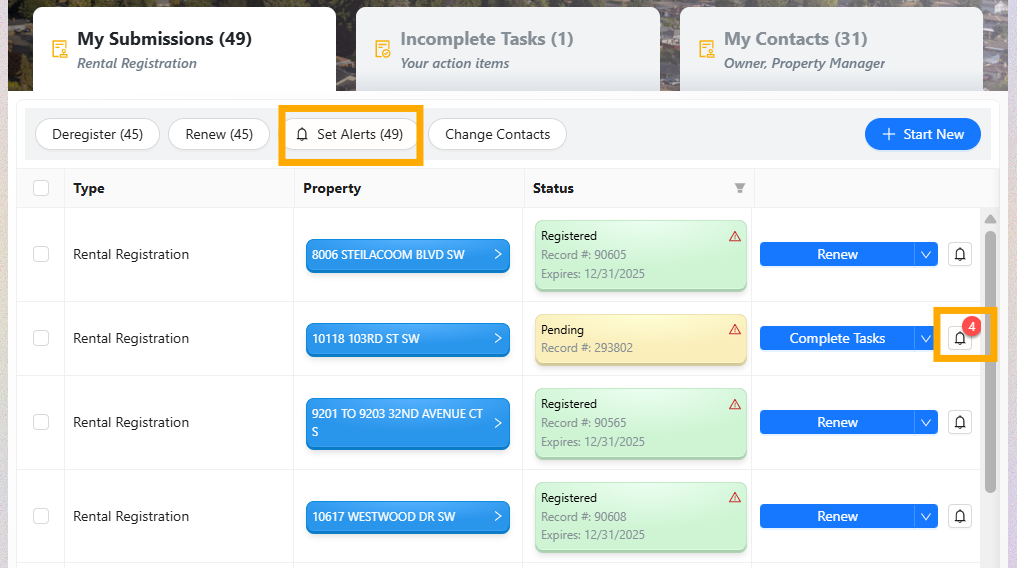
Once a property has been added to your dashboard, the white [🔔 Set Alerts] button will become active. Locate and select this button to proceed.

Step 3: A. Opting into Alerts
Under Field 1, you have two options:
- Select the [Select All] button to subscribe to all available alerts.
- Or, click the dropdown caret (v) to open the list and choose only the alert types you prefer.
Available Alert Types:
-
Police Incidents
-
Fire Incidents
-
Code Violations

Step 3: B. Choosing Alert Recipients
- Under Field 2, click the dropdown caret (v) to select from previously entered contacts, or type a new email address into the field for the person who should receive the alerts.
- Be sure to click [Save] when finished.

Step 4: Verify Alerts Are Set
- After enabling alerts, refresh the browser window to review the property address you've selected. If alerts are active, a red circle with a number will appear next to the address:
-
A red circle with the number “1” means you’ve opted into one alert type.
-
The number will increase based on how many alert types you’ve selected.
Step 5: Unsubscribe from Property Alerts
- To remove alerts, you can do either of the following:
- Click the bell icon to the far right of the listed property address to remove an alert for a single property.
- Click the white [Set Alerts] button in the dashboard task bar to unenroll from alerts for multiple properties at once.
Step 6: Deselect Alerts for a Specific Address
- To remove alerts, you can do the following:
-
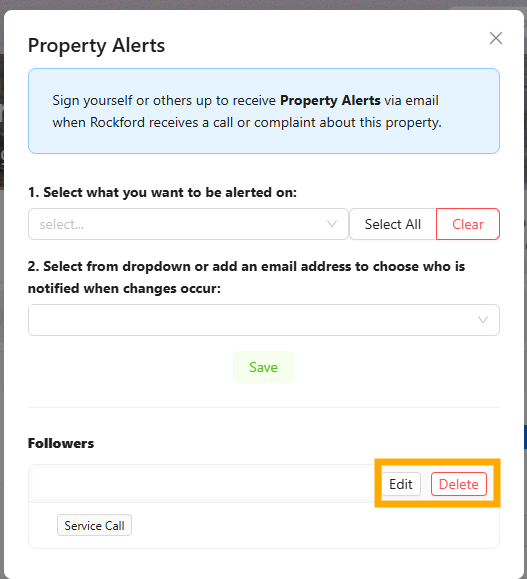
Click the [Delete] button to remove all selected alert options for the address.
-
If multiple alert options are selected but you only want to remove one, click the [Edit] button and deselect the specific alert type.
- Be sure to save your changes an refresh your browser window to view the updates.
If you have any questions please contact the Tolemi Support Team at [email protected] for additional assistance.

