


How to Add Another City to Your Account

Dec 10, 2025
 337
337
Step 1. Navigate to your Slate Registry Login Page
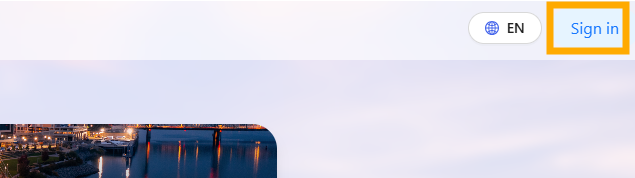
- Select the blue [Sign In] button in the upper-right corner to log in.
Step 2. Your Slate Account Dashboard
- Once logged in, you will see your Slate account dashboard.
- Keep your current Slate account open in your browser, and open a new tab or window.
- In the new tab/window, navigate to the registry landing page for the secondary city you would like to add to your account, then click the [→ Start] button.
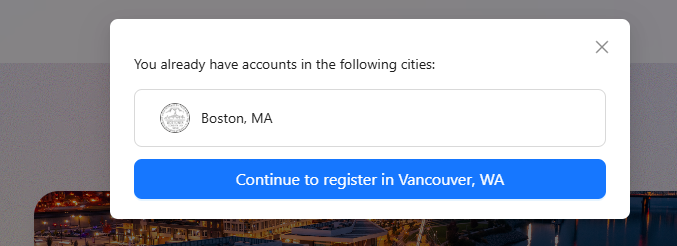
- Click [Continue to register in…] to add access to the new city.
Step 3: Confirm Dashboard Access
- Return to your original Slate account tab or window and refresh the page to apply the update.
- Your account will now display a [Change City] button.
- Click this button to switch between the cities your account can access.

If you have any questions please contact the Tolemi Support Team at [email protected] for additional assistance.

