


Step 1: Log into Slate account.
-
Ensure you are logged into your Slate account.

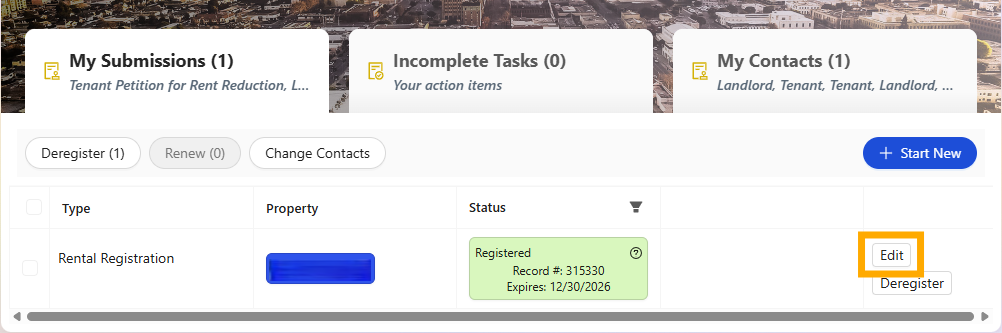
Step 2: Locate property and Select Edit button
-
Find the address of the property you want to update and select the white [Edit] button.
Step 3: A. Update Rental Property Registration
-
Add a unit address for you property.
-
Add a unit by selecting the [+Add Unit] button.
- Enter the address name and unit number for the property to be added.
- Select the (+) highlighted in red to add the additional unit to your registration.
-

Step 3: B. Update Rental Property Registration
-
Edit a listed unit address for your property.
-
Edit a listed unit by selecting the pencil icon to edit what is written.
-
Enter the updated information in the text field.
-
Select the green check to (✔) save your changes.
-
If you do not wish to make changes select the (x) to close the text field box. This will leave the current entry as it was originally entered.
-

Step 3: C. Update Rental Property Registration

-
Remove a listed unit address from your property.
- To remove a listed unit address select the trashcan icon to the right of the list unit address you want to remove.

Step 4: Review and Submit Updated Registration
-
Review entered information and select the [Next] button to move through your registration.
-
If all require fields are not completed, additional updates are needed to continue. Once all fields are completed select the [Next] button until you have reached the Review Submission and submit your updated registration.
If you have any questions please contact the Tolemi Support Team at [email protected] for additional assistance.

